Adding the Digital Octopus Card to Your Apple Wallet
Standing at the MTR turnstile in Central during the 8:30 AM rush, fumbling for a physical card while a sea of commuters sighs behind you, is a rite of passage every expat wants to avoid. This guide solves that friction by walking you through every detail of adding a digital Octopus card to your Apple Wallet for seamless, phone-based commuting.
Why You Should Ditch the Plastic Octopus Card
If you have lived in Hong Kong for more than a week, you already know that the Octopus card is the lifeblood of the city. However, carrying the physical plastic can be a burden. I remember the frustration of realizing my card was at the bottom of a backpack or, worse, left in the pocket of the jeans I wore yesterday. Moving your Octopus to your iPhone or Apple Watch is not just about being tech-savvy; it is about survival in a city that moves at the speed of light.
Convenience of Contactless Payments
The primary advantage of digitizing your card is the sheer speed of transaction. With Express Transit Mode, you do not even need to wake or unlock your device, or even authenticate with Face ID or Touch ID. You simply tap the top of your iPhone or the face of your Apple Watch against the reader. This is a game-changer when you are carrying groceries from a local wet market or navigating the city with a stroller. Beyond transport, the digital card works at 7-Eleven, Circle K, and thousands of restaurants. When you are settling into your new home, perhaps managed by a provider like Habyt or Blueground, having your payments centralized on your phone makes those first few weeks of "setting up life" much less chaotic.
Real-time Balance Checking and Alerts
One of the most significant pain points of the physical card is the "mystery balance." You only find out you are low on funds when the turnstile emits that irritating "low balance" beep. By moving to Apple Wallet, you can check your balance instantly by opening the app. Furthermore, you can set up notifications that alert you the moment your balance dips below a certain threshold. This level of transparency is essential for budgeting in an expensive city. If you are still in the process of moving your belongings with a service like Sirelo, you likely have enough on your plate without worrying if you have enough HKD on a piece of plastic to get home.
Prerequisites for Adding Octopus to Apple Wallet
Before you dive into the settings, you need to ensure your hardware is up to the task. Hong Kong’s infrastructure is incredibly advanced, but there are still specific technical requirements that must be met to ensure the NFC (Near Field Communication) handshake between your phone and the MTR gate is successful.
Hardware and Software Compatibility
To use a Smart Octopus on iOS, you generally need an iPhone 8 or later. If you prefer using your Apple Watch, you will need a Series 3 or later. Crucially, your device must be running the latest version of iOS or watchOS to avoid glitches during the "handing over" process between the physical card and the digital secure element. I always advise new arrivals to perform a full backup before migrating their card, as the physical card becomes permanently disabled once the data is transferred to the Apple Wallet. If you are following an Essential Health Checklist for Your First 30 Days in Hong Kong, consider this tech setup as vital as finding your local clinic.
Apple ID and Region Settings
This is the step where most people get tripped up. Your Apple ID region does not necessarily have to be set to Hong Kong, but your device region must be. Go to Settings > General > Language & Region and ensure "Hong Kong" is selected. Without this, the option to add an Octopus card simply won't appear in the Wallet app. Once you have successfully added the card, you can theoretically change your region back, but keeping it on Hong Kong ensures that local apps and services, including those for Public Transport in HK: MTR, Trams, Buses, and Ferries, function correctly.
Step-by-Step Guide Creating a New Digital Octopus
If you do not have a physical card yet, or if you want to keep your physical card as a backup for guests, creating a brand new digital card is the cleanest method. This process is handled entirely within the Apple Wallet or the Octopus App.
Using the Apple Wallet App
The most direct way is through the Wallet app itself. Tap the "+" icon in the top right corner. You will see a list of card types; select "Transit Card." Scroll down until you find "Octopus." You will then be prompted to choose an amount to "top up" onto the new card. Note that a HK$50 refundable deposit is required, just like with the physical version. You can pay for this using any credit or debit card already stored in your Apple Pay. This is particularly useful for expats who have not yet opened a local bank account but want to start using the system immediately. It is a vital part of The Octopus Card: Hong Kong's Essential Transport & Payment Tool ecosystem.
Using the Octopus App
For more advanced features, such as registering for the Government Public Transport Fare Subsidy Scheme or checking your transaction history for the last 90 days, I highly recommend downloading the official Octopus App from the App Store. Inside the app, select the "Octopus on iPhone" icon. The app will guide you through the creation process. The benefit of using the app is that it makes it easier to manage "Personalized Octopus" cards later on, which is important if you are a student or a senior eligible for discounted fares. Understanding these nuances is part of the broader Everyday Etiquette and Safety in Hong Kong: A Survival Guide.
How to Transfer an Existing Physical Card to iPhone
Many expats arrive and immediately buy a physical card at the Airport Express counter. If that is you, do not worry—you can migrate that card's balance and deposit directly into your phone.
The Migration Process
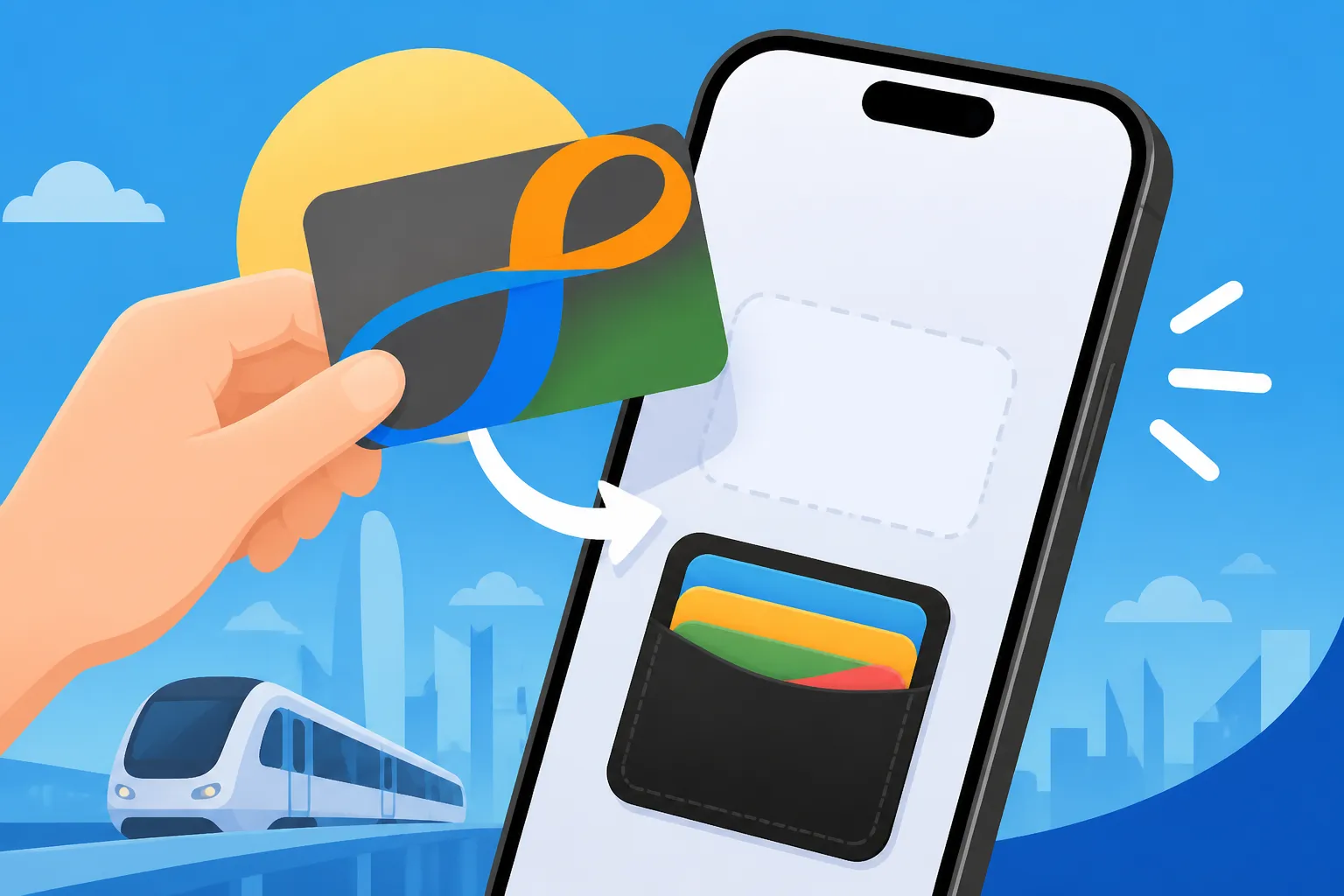
In the Apple Wallet app, when you select "Octopus," choose the option that says "Transfer Existing Card." You will be asked to enter the last few digits of your card number. Afterward, place your physical card on a flat surface and rest the top of your iPhone on the bottom half of the card. Do not move it. The phone will begin "sucking" the data from the card. This takes about a minute. Once completed, the physical card is rendered useless. It is a little bit of "tech magic" that still feels satisfying every time I see a newcomer do it.
Important Caveats (Deposits and Card Types)
Not every physical card can be transferred. If you have a first-generation Octopus (the ones without the dots at the end of the number) or a special edition "Ornament" card, the transfer might fail. Additionally, if you have a card provided by your company or a specific residential estate, there may be restrictions. Most standard "On-loan" cards transfer perfectly, including the HK$50 deposit. If you eventually leave the city and need to get that money back, you will need to follow the specific steps for How to Refund Your Octopus Card Deposit at the Airport. This is especially relevant if your relocation is being handled by Sirelo and you are clearing out your local accounts.
| Feature | Physical Octopus Card | Digital Octopus (Apple Wallet) |
|---|---|---|
| Authentication | None (Just tap) | None (Express Transit Mode) |
| Top-up Method | Cash at 7-Eleven / MTR | Apple Pay / FPS / Octopus App |
| Balance Visibility | Only at readers/machines | Real-time on iPhone/Watch |
| Security | If lost, money is gone | Can be locked via Find My iPhone |
| Max Balance | HK$3,000 | HK$3,000 |
| Battery Dependent | No | Yes (though has Power Reserve) |
Managing Your Digital Octopus Card
Once the card is in your Wallet, the real convenience begins. You no longer have to queue at the white "Add Value" machines at MTR stations, which always seem to have a line right when you are late for a meeting.
Topping Up via Apple Pay or FPS
The most seamless way to add funds is using Apple Pay. Within the Wallet app, tap your Octopus card, hit "Add Money," and select the amount. If you have a local bank account, you can also link the card to the Faster Payment System (FPS). This allows for instant transfers from your bank app to your Octopus. For those staying in flexible housing like Blueground or Habyt, managing all your local expenses digitally is a massive stress-reducer. You can even set up "Auto-reload" (AAVS) so that whenever your balance hits zero, it automatically pulls HK$250 or HK$500 from your credit card. You can find more details on this in our guide to Topping Up Your Octopus Card: Cash, App, and Credit Card Auto-Add.
Using Express Transit Mode
This is the "secret sauce" of the Apple Wallet experience. By default, the first transit card you add should be set to Express Transit Mode. This means you do not need to use Face ID or even wake your screen. You just tap the top of your phone against the yellow reader. It works even if you are currently on a phone call or listening to music. This is essential for navigating high-traffic stations like Admiralty or Central. If you are unsure which lines to take, check out the MTR Network Guide: Maps, Fares, and Interchange Stations to plan your route.
Troubleshooting and Expert Tips
Even the best technology has its quirks. Living in Hong Kong for years has taught me a few tricks for when the digital system doesn't behave as expected.
Battery Depletion and Power Reserve
A common fear among expats is: "What happens if my phone dies while I'm inside the MTR system?" On iPhone XR and later, Apple has a "Power Reserve" feature. This allows your phone to hold just enough juice to perform NFC transactions for up to five hours after the battery has officially "died." You will see a small message on the screen indicating that transit cards are still available. However, I wouldn't push your luck. If you are on a long ferry ride to Discovery Bay or a bus to the New Territories, keep a small power bank handy.
Moving Cards Between Devices
You cannot have the same Octopus card active on both your iPhone and your Apple Watch simultaneously. You must choose one. If you want to move the card from your phone to your watch, you must use the Apple Watch app on your iPhone, go to "Wallet & Apple Pay," and select "Add" next to the Octopus card listed under "Other Cards on Your Phone." It will then migrate to the watch. If you ever lose your phone, you should immediately use the Find My app to mark the device as lost, which will suspend the Octopus card to prevent unauthorized spending. This is a critical security step, similar to what you would do if you What to Do If You Lose Your Personalized Octopus Card.
Final Thoughts on Digital Integration
Digitizing your Octopus card is one of those small changes that significantly improves your quality of life in Hong Kong. It removes one more physical item from your pockets and streamlines your daily interactions with the city's incredible infrastructure. Whether you are here for a short-term project and living in a Blueground apartment, or you are moving here permanently and using Sirelo for your shipping needs, getting your digital life in order should be a top priority. Once you have mastered the tap-and-go lifestyle, you will wonder how you ever survived with a physical wallet.
Disclaimer
This guide is provided for informational purposes only. While we strive to provide the most up-to-date information regarding Hong Kong’s digital payment systems and transport regulations, policies and software requirements can change. Always refer to the official Octopus Cards Limited website or the Apple Support pages for the latest technical specifications and terms of use. The author and this website are not responsible for any financial loss or device malfunction resulting from the migration of physical cards to digital formats.